Gemini Live now taps more apps on Android
Gemini Live on Android now reaches more Connected Apps, so I can jump from chat to timers, music, travel, and Workspace without switching apps.
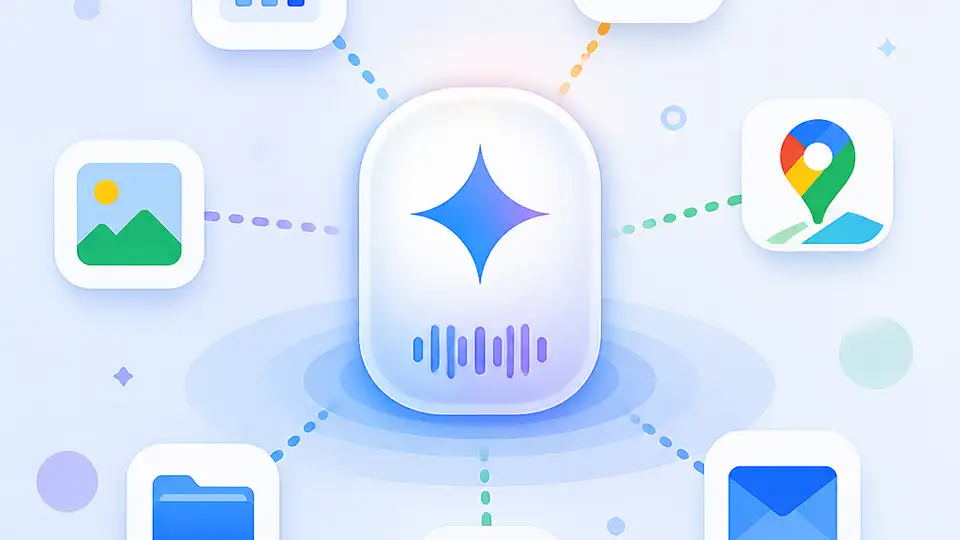
Gemini Live on Android now reaches more apps, so I can jump from chat to timers, music, travel, and Workspace.
I’ve been using Gemini Live on Android the way I use most assistant features: half hopeful, half annoyed. The pitch is always the same. Talk naturally, ask follow-ups, keep the thread going, and let the assistant handle the busywork. In practice, though, I kept running into the same wall. I’d be in a live conversation, then hit a point where I needed something real, like a timer, a calendar lookup, a route, or a quick handoff into another Google service. And that’s where the whole thing used to get clumsy. I’d have to stop, back out, open another app, and rebuild the context in my head like it was 2019 again.
The annoying part wasn’t that Gemini Live was bad. It was that it felt artificially fenced in. It could chat, but it couldn’t do enough. It could answer, but not act. So every time I tried to use it as my default “talk to the phone” layer, I ended up doing a bunch of app switching anyway. That’s the exact kind of friction that makes an assistant feel like a demo instead of a tool. This update is interesting because it finally starts cutting through that nonsense.
What caught my attention here was a 9to5Google report by Abner Li on May 23, 2026. He’s pointing to Google’s Neural Expressive redesign and the expanded list of Connected Apps now available inside Gemini Live on Android. No hype needed. The useful part is simple: Live is getting closer to the main Gemini app, and that matters if you actually use this stuff every day.
Google finally made Live feel less like a side feature
Get the latest AI news in your inbox
Weekly picks of model releases, tools, and deep dives — no spam, unsubscribe anytime.
No spam. Unsubscribe at any time.
“Gemini Live on Android can now access more first- and third-party ‘Connected Apps.’”
What this actually means is that Live is no longer just a conversational layer bolted onto the side of Gemini. It’s starting to behave like a real control surface for your phone and the services you already use. Google says this week’s update lets you “seamlessly switch from typing a quick question to diving deep into a free-flowing conversation — and back again — without missing a beat.” That line is marketing-flavored, sure, but the underlying idea is good: the chat UI and the voice UI are getting stitched together instead of living in separate little boxes.
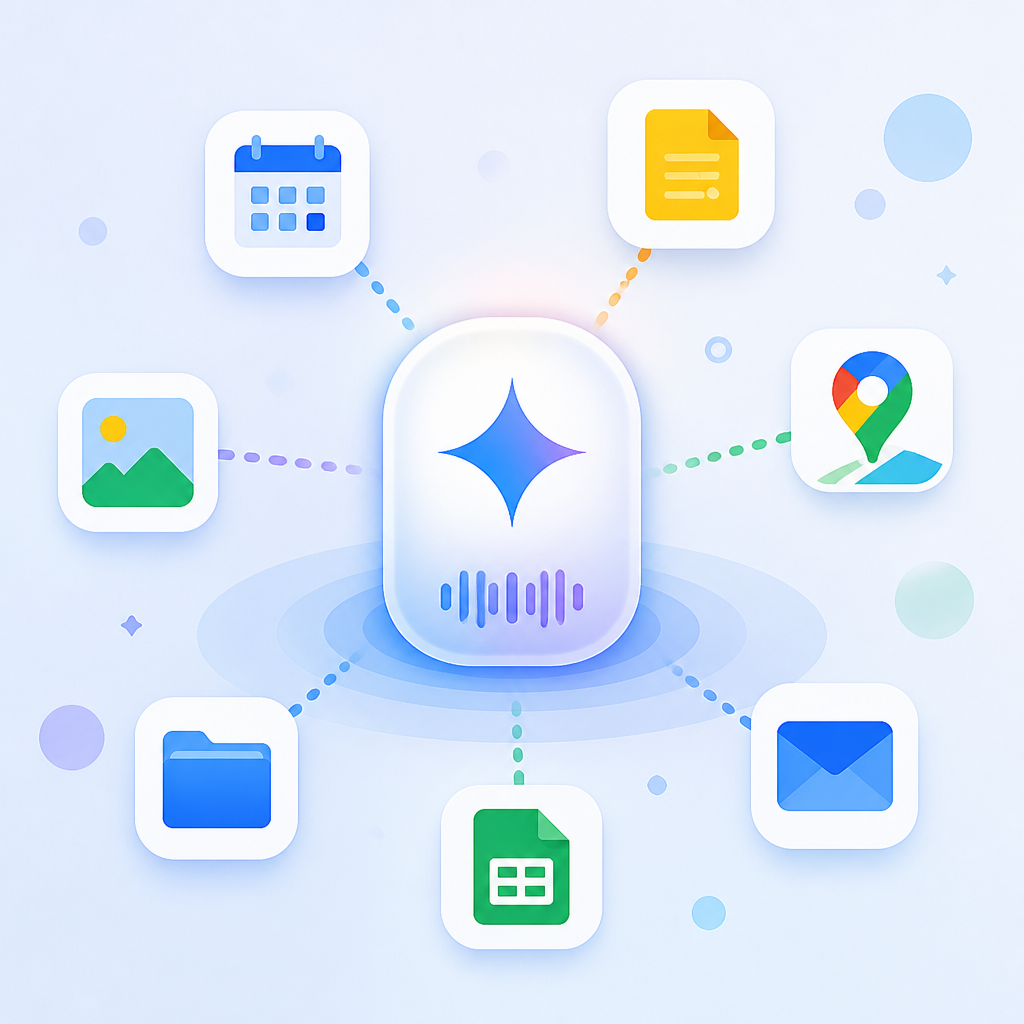
I’ve wanted this for a while because the old split was awkward in the exact places assistants should be strongest. If I’m asking about a trip, I don’t want to talk in one app, then jump to another app for flights, then another for maps, then another for a calendar reminder. I want one thread. One place to ask, refine, and act. That’s the promise here, and it’s finally moving in that direction.
How to apply it: if you’re building on top of Gemini Live, stop thinking of it as “voice mode.” Think of it as a context-preserving interface that should own the whole interaction. The more your workflow depends on follow-up questions and quick actions, the more valuable this gets. If you’re a product person, this is the pattern to copy: reduce the number of times the user has to leave the conversation.
The new app list is the real story, not the redesign
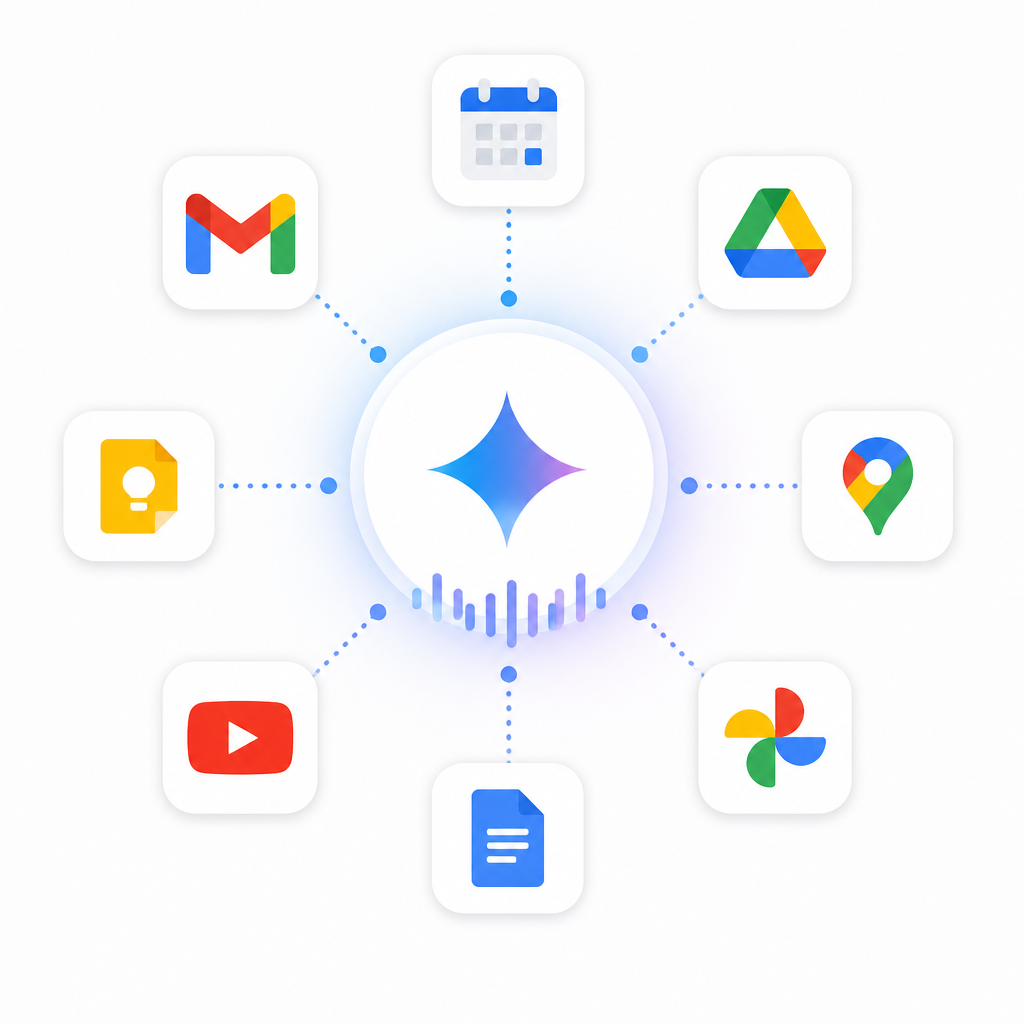
Google says the first-party Connected Apps now include Home, Hotels, Flights, Workspace, Image generation, Shopping, Utilities, YouTube, and YouTube Music, and there’s also Spotify support. That matters more than the redesign name. UI polish is nice, but app coverage is what decides whether I can actually use the thing without hand-holding it like a toddler.
Before this update, Gemini Live only integrated with Google Calendar, Tasks, Keep, and Maps, plus third-party equivalents from Samsung, Honor, OnePlus, Oppo, Tecno, Vivo, and Xiaomi. That was useful, but narrow. Calendar and Maps are obvious. Tasks and Keep are fine. But if you want Live to become a daily driver, it needs to reach into the other places where real work happens. Music. Home controls. Travel. Workspace. Even utilities like timers and alarms, which sound boring until you realize those are the tiny actions people ask assistants for constantly.
- Home means voice-driven smart home actions are now in the mix.
- Flights and Hotels make travel planning less fragmented.
- Workspace is the one I care about most if I’m trying to move from chat into work.
- Utilities is the unglamorous win, because timers and alarms are exactly the kind of thing I don’t want to hunt for.
I ran into this exact limitation when I tried using assistants for routine planning. The assistant would understand what I meant, but then I’d still have to do the final action manually. That’s the worst of both worlds: all the cognitive overhead of conversation, none of the payoff. More app connections don’t magically solve that, but they do remove a lot of the dead ends.
How to apply it: if you’re designing an assistant workflow, start by listing the top ten actions users keep leaving chat to complete. Then wire those actions directly into the conversation. Don’t wait for users to “just know” they can switch apps. The whole point is to keep them in motion.
Utilities is boring, which is why it matters
Google calls out Utilities on Android as the thing that unlocks timers and alarms. That’s a tiny detail, but it’s the kind of detail that tells you whether a feature is actually usable or just impressive in a screenshot. I don’t care how smart an assistant sounds if it can’t do the dumb little things I ask it to do ten times a day.
Timers and alarms are the perfect test case because they’re low stakes and high frequency. If I’m cooking, working, or trying to keep a meeting from running long, I want the assistant to set the thing and get out of my way. No extra taps, no app hunting, no “sorry, I can’t do that here.” When a product gets those tiny actions right, it starts feeling trustworthy. Not magical. Trustworthy. That’s a much harder bar.
There’s also a UX lesson here that a lot of teams miss. Users don’t judge assistants only by the big flashy tasks. They judge them by the annoying little ones. If the assistant can handle a flight search but fails on a timer, the whole experience feels lopsided. If it can handle both, the product feels like it belongs on the phone instead of beside it.
- Make the smallest actions dead simple.
- Expose them in the same surface as the conversation.
- Use them to build habit, not just wow factor.
How to apply it: if you’re shipping an AI assistant, prioritize the “tiny utility” actions first. Timers, reminders, quick lookups, note capture, and status checks are the stuff that keeps people coming back. The fancy stuff gets the demo. The boring stuff gets retention.
Gemini Live is inching toward the main Gemini app
9to5Google notes that Gemini Live is now “nearly on par with the Gemini app, specifically the overlay.” That’s the line that made me stop and nod, because it explains the direction of travel. Google isn’t just adding random integrations. It’s collapsing the gap between the live voice experience and the broader Gemini experience.
That’s important because fragmented assistant surfaces are a pain. If one mode can do more than the other, users have to memorize which mode to use for which task. Nobody wants that. They just want to ask for something and have it work. The closer Live gets to the overlay, the less mental bookkeeping I need to do.
There’s still one notable gap: sending Messages through Gemini Live. Google first mentioned that capability at Made by Google 2024, but it’s still not here. That tells me the rollout is still selective, which is fine, but it also shows the line between “almost complete” and “actually complete.” That missing Messages action is the kind of thing users will notice immediately if they assume Live should already be able to do it.
I’d treat this as a cautionary tale for any team building an AI interface. If you split capabilities across modes, you need a very clear reason. Otherwise people will just ask the obvious question: why can the assistant do this over here but not over there?
How to apply it: audit your own product for mode gaps. If your voice interface can do less than your text interface, document the difference clearly or fix it. Hidden limitations are how trust gets chipped away.
The third-party support is the part that makes this stick
Google’s first-party additions are useful, but the third-party support is what gives this some staying power. The article says Gemini Live previously supported third-party equivalents from Samsung, Honor, OnePlus, Oppo, Tecno, Vivo, and Xiaomi. That matters because Android is not one neat little ecosystem. It’s a mess of OEM layers, regional variants, and app defaults. If you only support Google’s own services, you’re ignoring how people actually use their phones.
That’s why the Connected Apps approach is smarter than a one-off feature drop. It creates a model where Google can keep expanding the assistant’s reach without forcing every interaction through a single product silo. The more services can plug into the same live conversation, the less brittle the experience becomes.
I’ve seen this pattern fail before in other products. The launch looks great, but the ecosystem is too narrow, so real usage drops off fast. Users hit one unsupported action and the illusion breaks. Here, the expanding list makes the feature more durable because it’s not tied to one narrow use case.
How to apply it: if you’re building integrations, don’t stop at the obvious first-party stuff. Map the ecosystem around your product. Support the services people already use, even if they’re not yours. Otherwise you’re just building a prettier dead end.
What I’d actually use this for on Android
If I’m being honest, the most useful version of Gemini Live is not “talk to your phone.” It’s “stay in the conversation while the phone does things.” That’s a much better mental model. I can ask about a trip, pivot to a reminder, check a route, start a timer, queue music, and maybe pull in Workspace without bouncing around the interface like I’m trying to win a scavenger hunt.
That’s where the update feels practical. Not perfect. Practical. I don’t need an assistant that pretends to understand everything. I need one that reduces friction on common tasks and keeps context alive long enough for me to finish what I started.
The big takeaway for developers is simple: the assistant surface matters less than the action surface. If the app can’t do useful things where the conversation is happening, it’s just a chat toy. If it can act without making me leave, then it starts earning a place on the home screen.
How to apply it: build your assistant flows around real user jobs. Don’t start with “what can the model say?” Start with “what can the user finish without switching context?” That’s the difference between novelty and utility.
The template you can copy
# Gemini Live Connected Apps checklist for Android assistants

Use this when you want a chat or voice assistant to do real work without forcing app switching.

## 1) Define the live actions
List the actions users should be able to complete inside the conversation.

- Set timer
- Set alarm
- Create calendar event
- Add task
- Save note
- Open map route
- Search flights
- Search hotels
- Control smart home
- Play music
- Generate image
- Search Workspace content

## 2) Map actions to connected services
For each action, name the service it should call.

| User action | Connected app |
|---|---|
| Set timer | Utilities |
| Set alarm | Utilities |
| Create calendar event | Calendar |
| Add task | Tasks |
| Save note | Keep |
| Open route | Maps |
| Search flights | Flights |
| Search hotels | Hotels |
| Control devices | Home |
| Play music | YouTube Music / Spotify |
| Generate image | Image generation |
| Find work docs | Workspace |

## 3) Keep the conversation alive
When the user asks follow-up questions, preserve:

- intent
- entities
- time context
- location context
- account context

## 4) Make the fallback obvious
If an action is unavailable, say exactly why and offer the nearest supported path.

Example:
"I can’t send that message from Live yet, but I can draft it here or open Messages for you."

## 5) Ship the boring stuff first
Prioritize the tiny actions users repeat every day:

- timers
- alarms
- reminders
- quick searches
- note capture
- playback control

## 6) Copy-ready product rule
If the user can complete a task in under 10 seconds, keep it in the live interface.
If the task needs more than one app switch, it’s probably broken.

## 7) Example system prompt fragment
You are a live assistant inside Android. Keep the user in one conversation. When a connected app can complete the task, call it directly. If a capability is missing, explain the limit plainly and offer the closest supported action.

## 8) Example UX copy
- "I can set that timer right here."
- "I’ve opened the flights search with your dates filled in."
- "I can’t send Messages from Live yet, but I can draft it."
- "Want me to set a 15-minute alarm instead?"
The useful part of this template is that it forces you to think in actions, not features. That’s where assistant products usually get sloppy. They talk about intelligence and miss the workflow. Don’t do that. Make a list of jobs, map them to services, define the fallback, and keep the user in the same thread.
Source attribution: this breakdown is based on 9to5Google’s article and is my interpretation of what the update means for Android assistant workflows. The original reporting is by Abner Li, and anything beyond the quoted details above is my own analysis.
// Related Articles
- [TOOLS]
Magenta RealTime 2 lets you score in the DAW
- [TOOLS]
Open-source AI tools beat Claude’s paid tiers on value
- [TOOLS]
500 AI agent projects show where agents work now
- [TOOLS]
Chocolatey’s Go package turns installs into policy
- [TOOLS]
Go support policy turns releases into a checklist
- [TOOLS]
RustDesk self-hosting setup for secure remote access