5 Docker Desktop features for developers
5 Docker Desktop features that help developers build, test, and ship apps with local containers and shared tooling.
Docker Desktop gives developers local containers, shared tools, and built-in workflow support.
Docker Desktop is built to help you run containers locally, connect with your favorite tools, and tap Docker Hub’s library of trusted images and templates. The docs also note support for a wide range of workflows across Desktop, Engine, and related tools, so this guide focuses on five practical features to know first.
| Item | Best for | Key benefit |
|---|---|---|
| Desktop app | Local development | Run containers on Mac, Windows, or Linux |
| Docker Hub access | Starting projects fast | Use trusted images and templates |
| Kubernetes support | Cluster testing | Test containerized apps before deployment |
| CLI integration | Power users | Work from the terminal with familiar commands |
| Settings and troubleshooting | Team admins | Control resources and fix issues |
1. Local container development
Get the latest AI news in your inbox
Weekly picks of model releases, tools, and deep dives — no spam, unsubscribe anytime.
No spam. Unsubscribe at any time.
Docker Desktop’s core job is simple: let you build and run containers on your machine. That means you can test app changes without waiting for a remote environment, and you can keep your setup close to what production uses.
For day-to-day work, this is the fastest path from code to feedback. It is especially useful when you need to check dependencies, service startup order, or environment variables before you push anything upstream.
- Run app services locally with Docker containers
- Match development and deployment behavior more closely
- Test changes without leaving your laptop
2. Docker Hub images and templates
The docs highlight access to a broad ecosystem of trusted images and templates through Docker Hub. That makes it easier to start with a known base image instead of building everything from scratch.
This matters when you want a clean starting point for a database, web server, language runtime, or sample app. It also helps teams standardize on the same base artifacts, which cuts down on setup drift.
- Pull official or trusted images for common stacks
- Use templates to bootstrap new projects
- Share a repeatable starting point across a team
3. Tool and language integration
Docker Desktop integrates with preferred development tools and languages, so it fits into existing workflows rather than asking you to replace them. You can keep your editor, terminal, and build tools in place while adding container support.
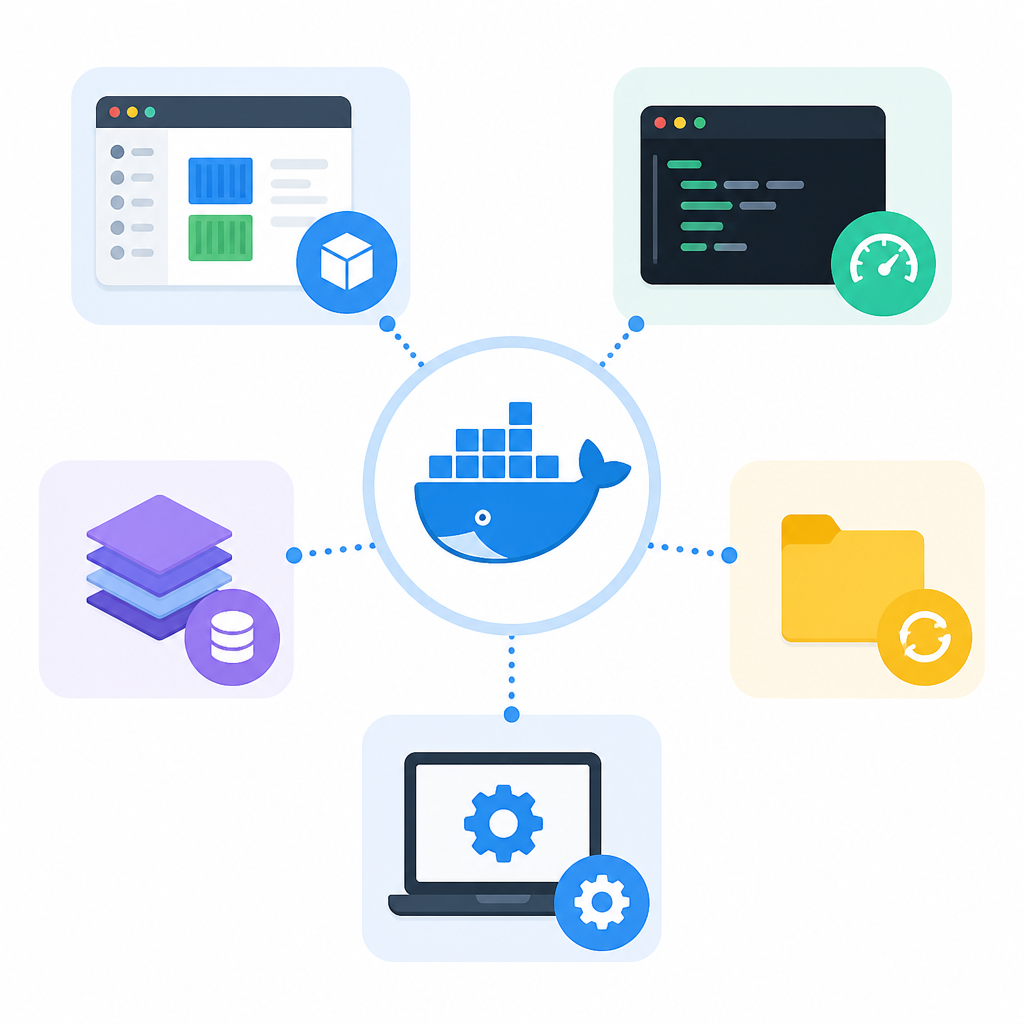
That flexibility is useful for teams with mixed stacks. A Python service, a Node app, and a Go utility can all live in the same container-first workflow while developers keep their own preferred local tools.
docker run --rm hello-world
docker compose up
docker ps
4. Kubernetes and app testing
Docker Desktop includes Kubernetes support, which is helpful when you need to test how a containerized app behaves in a cluster-style setup. You can move from single-container checks to multi-service validation without switching platforms.
For teams that plan to deploy to Kubernetes later, this shortens the distance between local development and real deployment checks. It is a practical way to spot config problems early, before they reach staging.
- Validate manifests and service wiring locally
- Check multi-container behavior before release
- Practice cluster workflows on a developer workstation
5. Settings, limits, and troubleshooting
Docker Desktop also gives you controls for maintenance and support tasks. The docs cover setup, resource settings, logs, troubleshooting, and release notes, which helps when a machine needs tuning or a container fails in a confusing way.
This is the feature set that keeps the tool usable over time. If a laptop runs hot, a build gets slow, or a container will not start, you have a place to inspect logs, adjust resources, and follow guided fixes.
- Adjust resource use and desktop behavior
- Review logs and known issues
- Use troubleshooting docs when a container misbehaves
How to decide
If you are new to containers, start with local development and Docker Hub images. Those two features give you the fastest path to a working setup and a useful sample app. If you already build containerized services, focus on tool integration and Kubernetes support.
Teams that manage many laptops or support mixed environments should pay close attention to settings and troubleshooting. That is where Docker Desktop becomes less about launching containers and more about keeping the workflow stable.
// Related Articles
- [IND]
Korea’s Nvidia talks point to an AI factory push
- [IND]
OpenAI should not rush its IPO just to win the AI race
- [IND]
OpenAI updates its Europe privacy policy
- [IND]
OpenAI is right to keep ads out of sensitive chats
- [IND]
AI bootlegs are already draining streaming royalties
- [IND]
AMD and Microsoft push Windows ML on GPU and NPU