How to choose a GPU for 异环
This guide explains how to pick an RTX 50-series GPU for 《异环》 and verify DLSS 4 features.

This guide shows how to choose an RTX 50-series GPU for 《异环》 and verify DLSS 4 features.
If you are planning a PC build or a GPU upgrade for 《异环》, this guide will help you make a practical choice based on the game’s reported support for DLSS 4.5 super resolution and DLSS 4 4x frame generation. By the end, you will know which cards to prioritize, how to check feature support, and how to confirm your setup is ready for the game.
The focus here is on a straightforward end-to-end selection workflow, not on abstract GPU theory. You will end with a shortlist of RTX 50-series options, a quick validation checklist, and the main pitfalls to avoid before buying.
Before you start
Get the latest AI news in your inbox
Weekly picks of model releases, tools, and deep dives — no spam, unsubscribe anytime.
No spam. Unsubscribe at any time.
- An NVIDIA account for driver downloads and feature notes.
- A Windows 11 PC, or a test machine running Windows 10 22H2 or later.
- GeForce RTX 50-series GPU availability in your region.
- Latest NVIDIA Game Ready Driver installed.
- Access to the official NVIDIA docs and GeForce pages for DLSS details.
- Optional: Steam or the game launcher for 《异环》 if you want to test in-game.
Step 1: Confirm 《异环》 feature support
Your first goal is to verify what the game actually supports before you spend on hardware. According to the source, 《异环》 supports DLSS 4.5 super resolution and DLSS 4 4x frame generation, which makes NVIDIA’s newer RTX 50-series cards the most relevant starting point.

Check the game’s official announcements, store page, or launch notes for the exact wording on DLSS and ray tracing support. If the game lists DLSS 4.5 super resolution and 4x frame generation, you should treat that as a strong signal that RTX 50-series cards are the best-fit option.
You should see the game or its documentation explicitly mention DLSS features, or at minimum a clear NVIDIA partnership note.
Step 2: Shortlist RTX 50-series cards
Now turn the feature support into a buying list. For this game, the safest recommendation is to start with RTX 50-series models, because the source says they are the best gaming GPUs for 《异环》. If you want the simplest path, choose the highest model you can reasonably afford within the RTX 50 family.
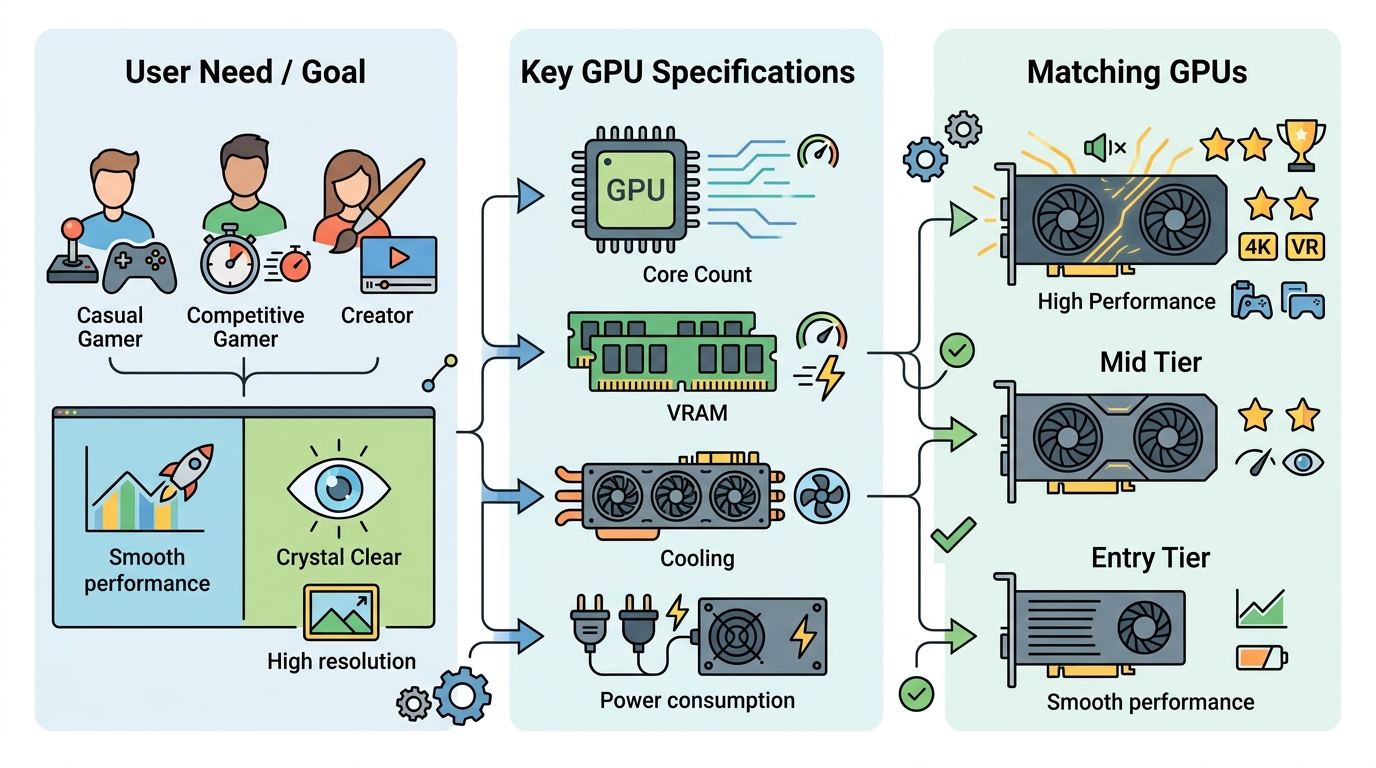
Recommended shortlist for 《异环》- RTX 50-series first choice- Pick the highest VRAM and cooling tier within budget- Avoid older cards if you want the full DLSS 4 feature pathYou should end this step with one primary GPU target and one backup option in the same family, such as a higher-end and a midrange RTX 50-series model.
Step 3: Verify DLSS driver readiness
Your goal here is to make sure the software stack can actually expose the features the game needs. Install the latest NVIDIA Game Ready Driver, then open the NVIDIA app or control panel and confirm that your GPU is recognized correctly. This matters because frame generation and super resolution depend on both game support and driver support.
If you are testing on a fresh system, reboot after installation and check that Windows Device Manager lists the GPU without warning icons. Then confirm the driver version is current on NVIDIA’s download page or in the NVIDIA app.
You should see your RTX card listed normally and the driver marked as up to date.
Step 4: Match GPU choice to your target resolution
Next, align the card with the way you plan to play. If you want high settings with ray tracing features enabled, the RTX 50-series is the logical target because the source highlights hardware support for AI, ray tracing, and shader workload scheduling on the GPU. That design is meant to reduce reliance on the CPU for those tasks.
Use your target resolution as the deciding factor: 1080p users can aim lower in the RTX 50 stack, while 1440p and 4K players should prioritize stronger cooling, more VRAM, and more headroom. The point is to buy for the experience you want, not just for minimum launch requirements.
You should be able to say, in one sentence, which RTX 50-series tier matches your resolution and quality target.
Step 5: Test ray tracing and frame generation in game
The final step is to confirm the card performs as expected inside 《异环》. Launch the game, enable DLSS super resolution, and turn on frame generation if the menu exposes it. Then enable ray tracing options one by one so you can see whether the card maintains smooth play.
Watch for stable frame pacing, acceptable input feel, and no obvious stutter when switching camera views or entering busy scenes. If performance drops too far, reduce ray tracing intensity before lowering resolution, because DLSS features are designed to preserve image quality while improving throughput.
You should see DLSS options available in the graphics menu and a playable frame rate with your chosen settings.
| Metric | Before/Baseline | After/Result |
|---|---|---|
| Game GPU recommendation | Older GPU classes considered | RTX 50-series recommended |
| Upscaling support | Standard super resolution | DLSS 4.5 super resolution |
| Frame generation | Single-frame generation path | DLSS 4 4x frame generation |
| Task scheduling | More CPU-dependent workflow | On-GPU scheduling with hardware AMP engine |
Common mistakes
- Buying an older GPU because it is cheaper. Fix: prioritize RTX 50-series if you want the game’s reported DLSS 4 feature set.
- Assuming every RTX card gets the same experience. Fix: compare model tier, VRAM, and cooling before you buy.
- Skipping driver updates. Fix: install the latest Game Ready Driver before testing the game.
What's next
If you want to go deeper, compare specific RTX 50-series models by VRAM, power draw, and case clearance, then test 《异环》 at your target resolution with DLSS and ray tracing toggled separately so you can measure the real tradeoff for your system.
// Related Articles
- [IND]
WebX 2026 turns speaker hype into a conference brief
- [IND]
AI Weekly: 2026-07-06 ~ 2026-07-13
- [IND]
The AI Act should be treated as Europe’s operating system for AI
- [IND]
Booz Allen’s OpenAI Deal Is Real Advantage, Not Hype
- [IND]
OpenSearch’s vector search benchmark in 5 parts
- [IND]
Vector Databases That Work in Production