How to use Google AI agents for search alerts
Set up Google’s new AI information agents to monitor topics and send proactive updates.
Set up Google’s new AI information agents to monitor topics and send proactive updates.
This guide is for developers, power users, and product teams who want to understand Google’s new Search-based AI agents and use them to track topics without repeating the same query every day. After you follow the steps, you will know how to create an information agent, refine what it watches, verify notifications, and manage active topics from AI Mode history.
Google says these agents are part of its new agentic Search experience, first rolling out to Google AI Pro and Ultra subscribers in the U.S. They are designed to work in the background, summarize changes from multiple sources, and alert you when something relevant happens.
Before you start
Get the latest AI news in your inbox
Weekly picks of model releases, tools, and deep dives — no spam, unsubscribe anytime.
No spam. Unsubscribe at any time.
- A Google account with access to Google Search AI Mode
- Google AI Pro or Google AI Ultra subscription
- Availability in the U.S. for the initial rollout
- The Google app installed on iOS or Android
- Push notifications enabled for the Google app
- A topic to track, such as flights, stocks, sports, jobs, weather, or events
Step 1: Open AI Mode in Google Search
Goal: reach the interface where Google lets you create and manage information agents. The feature lives inside AI Mode, not in a standard web search box, so you need to start there before you can define any tracked topic.
Open Google Search, switch into AI Mode, and look for the prompt entry field. From there, you can type a request that describes what you want monitored over time.
Verification: you should see an AI Mode prompt area and a place to enter a conversational request, not just a list of blue links.
Step 2: Create a tracking prompt
Goal: define a clear agent that knows what to watch and when to alert you. Google’s example is a prompt like, “Keep me updated on nearby movie tickets for ‘The Mandalorian and Grogu.’”
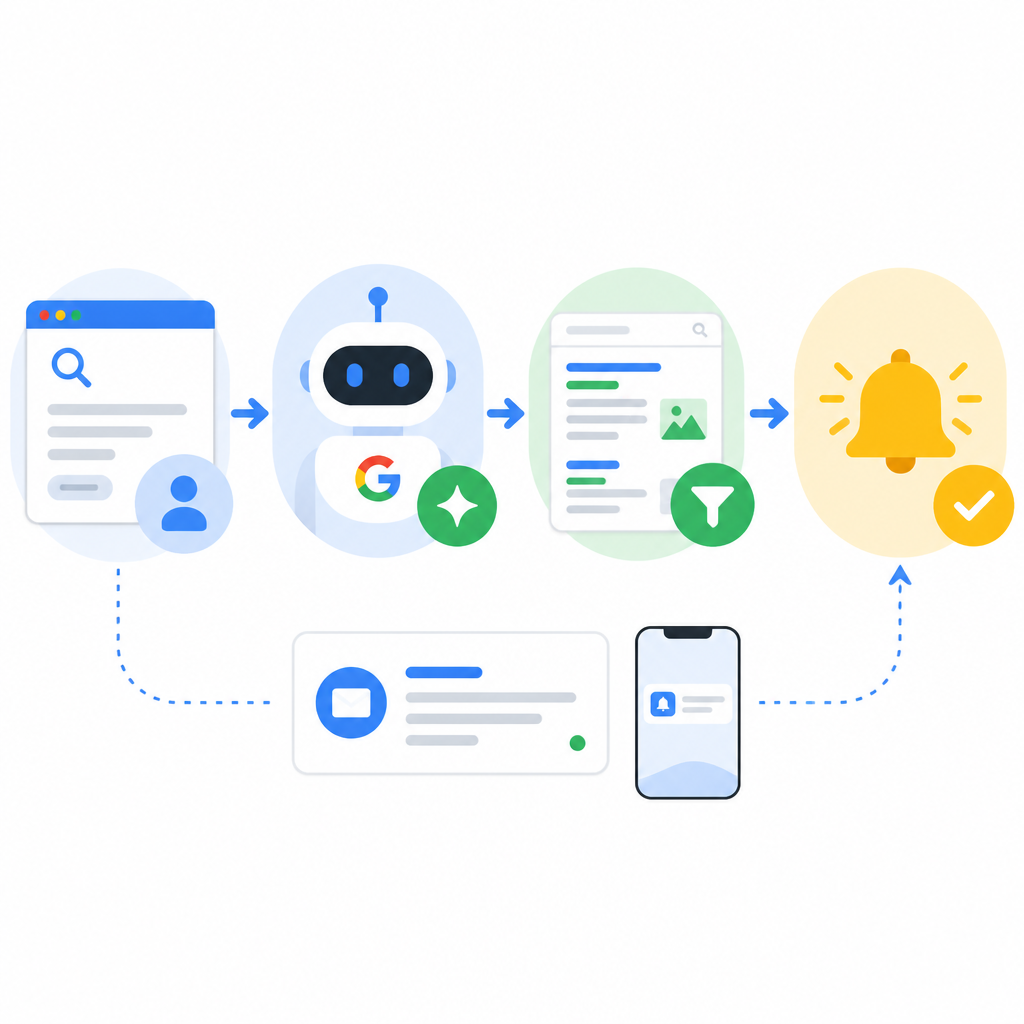
Keep me updated on nearby movie tickets for “The Mandalorian and Grogu.”You can adapt that pattern for your own use case. Try a topic with a clear signal, such as a company, price range, team, route, neighborhood, or event. The more specific the prompt, the easier it is for the agent to filter noise and surface useful changes.
Verification: you should see your request accepted as a tracked topic, not treated as a one-off search result.
Step 3: Review push notifications and summaries
Goal: confirm that the agent is doing background monitoring and not just answering once. When something relevant appears, the Google app sends a push notification with a summary and links to learn more.
Watch for alerts on your phone and open them to see how Google explains the update. The point of the agent is not only to notify you, but also to synthesize information from multiple sources and explain why the change matters.
Verification: you should receive a push notification when the tracked topic changes, and the alert should include a concise summary or follow-up links.
Step 4: Manage active topics in AI Mode history
Goal: keep your agents organized so you can refine, pause, or remove them later. Google says active tracked topics appear in AI Mode history, which acts like a control center for your ongoing monitoring.
Open AI Mode history and review the list of topics you are tracking. From there, you can jump back into the prompt, adjust the scope, or turn off an alert if it is too broad or no longer useful.
Verification: you should see your active topics listed in history and be able to edit or disable them without starting from scratch.
Step 5: Tune prompts for better signal
Goal: improve the quality of updates by making the agent more precise. Because these agents are designed to go beyond simple notifications, they work best when you ask for a specific outcome, time window, or category of change.
Refine prompts by adding constraints such as location, price band, company name, or event type. For example, instead of tracking “jobs,” track “remote backend roles at startups in the U.S.” Instead of tracking “weather,” track “severe weather alerts for Seattle this week.”
Verification: you should notice fewer irrelevant alerts and more updates that match the exact change you care about.
- If notifications do not arrive, check that push alerts are enabled for the Google app and that AI Mode is available on your account.
- If results are too noisy, narrow the prompt with a location, date range, or subject-specific keyword.
- If you cannot find a topic later, open AI Mode history, where Google says active agents are stored for review and control.
| Metric | Before/Baseline | After/Result |
|---|---|---|
| Search behavior | Manual repeat searches | Continuous background monitoring |
| Notification style | No proactive alerts | Push notifications when relevant changes appear |
| Information output | Link list only | Multi-source summaries with context |
Common mistakes
- Using a vague prompt like “news” or “updates.” Fix: name a specific topic, entity, or event so the agent knows what to monitor.
- Expecting the feature in standard Search. Fix: open AI Mode, since Google says the agents are part of that experience.
- Forgetting notification permissions. Fix: enable push notifications for the Google app, or you may miss alerts even if the agent is active.
What’s next
Once you have one useful agent running, try building a small set of topic-specific agents for work, travel, finance, and local events, then compare how each prompt affects alert quality and relevance.
// Related Articles
- [AGENT]
Claude Code 动态工作流:AI 自写 Harness
- [AGENT]
Agent orchestration is the missing layer for enterprise AI
- [AGENT]
AI agents use blockchain as a trust layer
- [AGENT]
8 RAG patterns that turn demos into prod
- [AGENT]
Fine-tuning beats RAG when the goal is style, not facts
- [AGENT]
OpenClaw shows how small businesses use AI staff