How to Run Hermes Agent on Discord
Set up a Hermes Agent Discord bot with the right Discord intents and OpenClaw Launch deployment.

Set up a Hermes Agent Discord bot with the right Discord intents and OpenClaw Launch deployment.
This guide is for developers who want a Hermes Agent bot running in Discord servers or DMs without building the bot runtime from scratch.
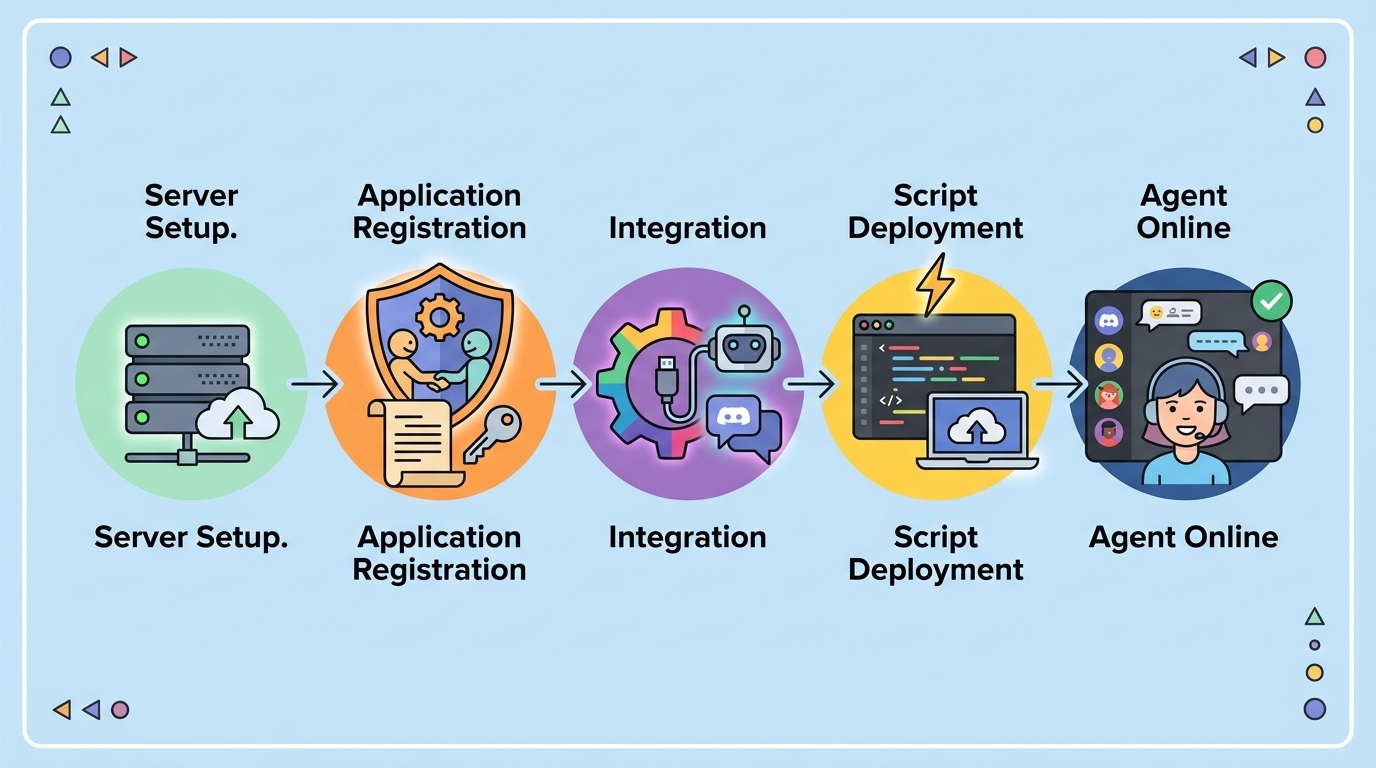
After you follow the steps, you will have a Discord application, a bot token, the correct message-reading permissions, and a live Hermes deployment connected to Discord.
Before you start
Get the latest AI news in your inbox
Weekly picks of model releases, tools, and deep dives — no spam, unsubscribe anytime.
No spam. Unsubscribe at any time.
- A Discord account with access to the Discord Developer Portal
- An OpenClaw Launch account and access to OpenClaw Launch Hermes hosting
- A Hermes Agent deployment target that supports Discord
- A Discord server where you can invite bots
- Node.js is not required for OpenClaw Launch, but self-hosted setups should use Node 20+ or the runtime required by your Hermes image
- A bot token copied from the Discord Developer Portal
Step 1: Create a Discord application
Outcome: a Discord app shell that can issue a bot token. Start in the Discord Developer Portal and create the application that will represent your Hermes bot.
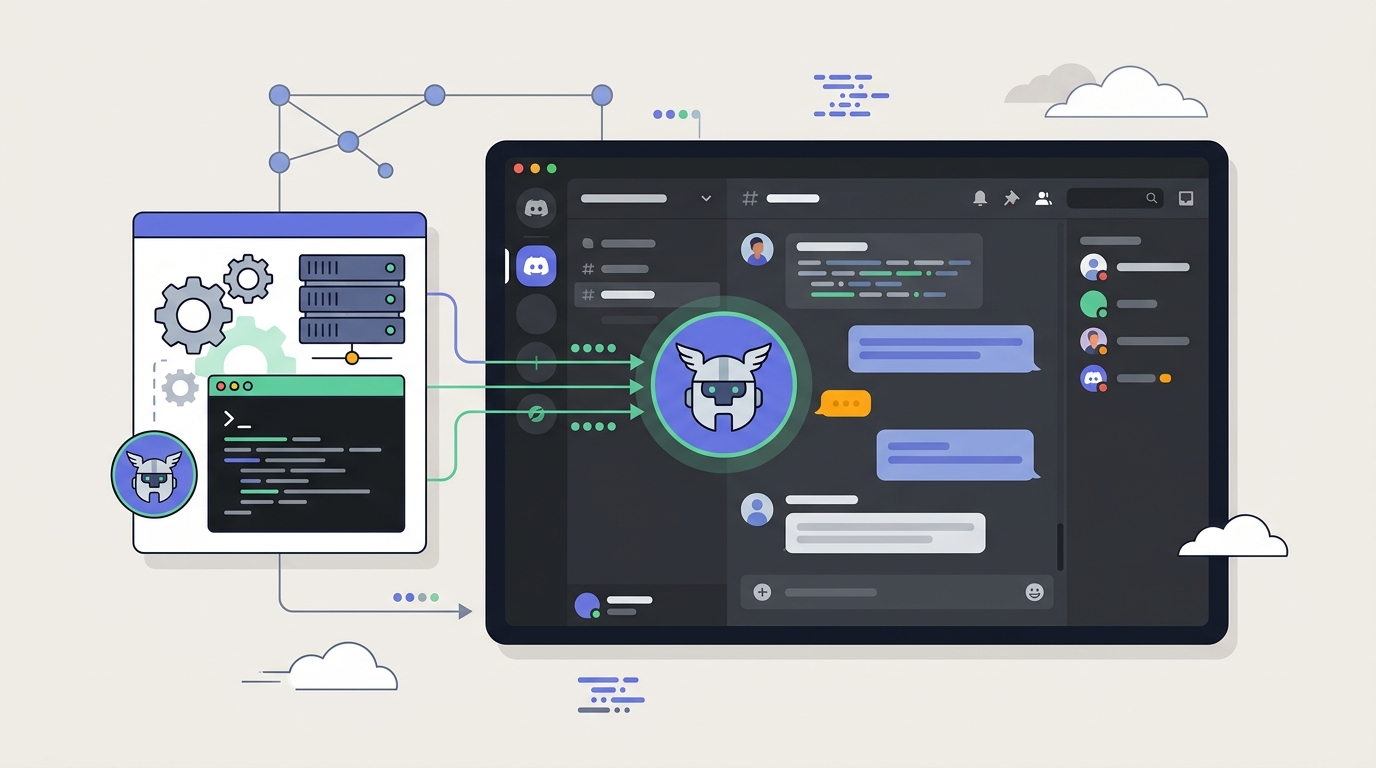
Open the portal, choose New Application, enter a bot name, and confirm the creation. Then open the Bot tab and generate a token.
Discord Developer Portal → New Application → Bot → Reset TokenYou should now see an application entry in the portal and a bot token you can copy. Keep that token private, because anyone with it can control the bot.
Step 2: Enable Message Content Intent
Outcome: your bot can read normal Discord messages, not just slash commands. Hermes needs message content access so it can understand natural language in channels and DMs.
In the bot settings, scroll to Privileged Gateway Intents and turn on Message Content Intent. Save the change before leaving the page.
Bot settings → Privileged Gateway Intents → Message Content Intent → OnYou should see Message Content Intent enabled in the portal. Without it, Hermes will receive only interaction events and will not respond to regular chat messages.
Step 3: Invite the bot to your Discord server
Outcome: the bot appears in your server with the permissions it needs. Use the OAuth2 URL generator to create an invite link for the bot.
Go to OAuth2 → URL Generator, select the bot scope, and grant Send Messages, Read Message History, and Read Messages / View Channels. Copy the generated URL, open it, and authorize the bot into your server.
OAuth2 → URL Generator → scopes: bot → permissions: Send Messages, Read Message History, Read Messages/View ChannelsYou should now see the bot listed in your server member list. If it does not show up, confirm that you invited it to the correct server and that your account has permission to add bots there.
Step 4: Deploy Hermes on OpenClaw Launch
Outcome: a live Hermes bot connected to Discord in about 10 seconds. Use OpenClaw Launch to wire the Discord token into Hermes and start the agent runtime.
Open the Hermes hosting page on OpenClaw Launch, choose Discord as the channel, paste the bot token, select your model, and click Deploy. OpenClaw Launch configures the Discord policy for invite-only access, so you do not need a Telegram-style pairing flow.
Channel: Discord
Token: your-discord-bot-token
Model: Claude, GPT, Gemini, DeepSeek, Grok, or another Hermes-supported model
Action: Deploy
You should see a successful deployment state and your bot should begin responding in the server where you invited it. Send a test message in a channel the bot can read and confirm that Hermes replies.
Step 5: Configure self-hosted Discord settings
Outcome: a self-hosted Hermes instance that can reconnect to Discord after restarts. If you are not using OpenClaw Launch, add the Discord token to your Hermes config and restart the container.
Edit /opt/data/config.yaml and add the Discord platform configuration, then restart the Hermes container so the new settings load.
platforms:
  discord:
    token: "your-bot-token-here"
You should see Hermes reconnect after the restart and continue responding in Discord. If the bot stays offline, check the token value, the container logs, and whether Message Content Intent is still enabled in the portal.
| Metric | Before/Baseline | After/Result |
|---|---|---|
| Deploy time | Manual bot setup and hosting | About 10 seconds on OpenClaw Launch |
| DM policy | Telegram-style pairing flow | Open access for Discord invite-based bots |
| Message access | Slash commands only | Natural language messages in channels and DMs |
Common mistakes
- Forgetting Message Content Intent. Fix it in the Bot settings under Privileged Gateway Intents, then save and retest message replies.
- Using the wrong permissions on the invite link. Fix it by regenerating the OAuth2 URL with Send Messages, Read Message History, and View Channels enabled.
- Reusing an exposed bot token. Fix it by resetting the token in the Developer Portal and updating OpenClaw Launch or your config immediately.
What's next
Once the Discord bot works, extend Hermes with tools, memory, or extra channels such as Telegram and WhatsApp, or connect it to MCP so it can search the web and use external services.
// Related Articles
- [AGENT]
Perplexity should build Teammate as a coding agent, not a copilot
- [AGENT]
HP adopts OpenAI Frontier across global operations
- [AGENT]
Build a production vector DB for RAG
- [AGENT]
Ornith-1 turns agent coding into a server
- [AGENT]
Crypto AI agents are useful, but only for narrow workflows
- [AGENT]
AI Agents in Crypto: 2026 Protocol Guide