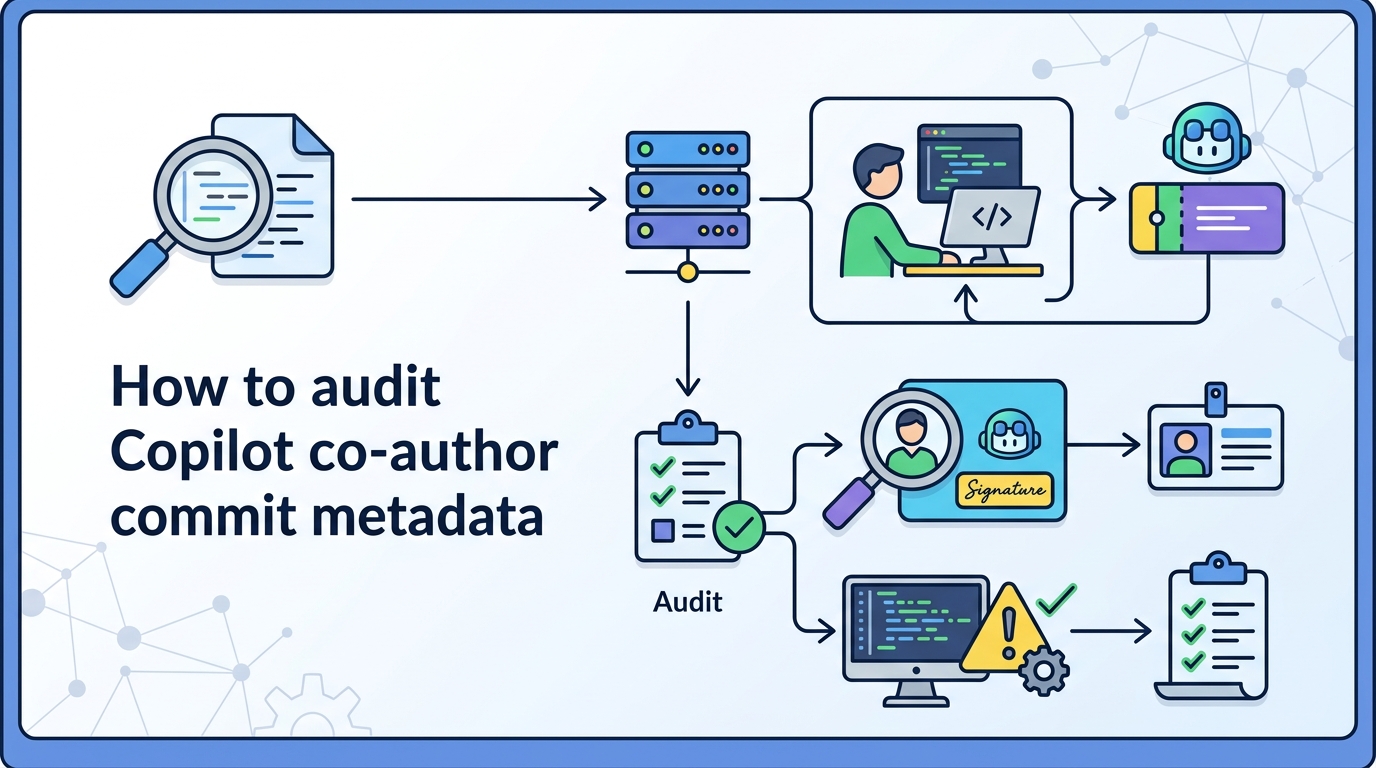
How to audit Copilot co-author commit metadata
Learn how to verify and control Copilot’s co-author line in Git commit messages.

Learn how to verify and control Copilot’s co-author line in Git commit messages.
This guide is for developers who use VS Code and GitHub Copilot and want to understand why a commit may now include an AI co-author line. After following the steps, you will know how to reproduce the behavior, inspect the resulting Git metadata, and decide whether to keep or remove the line in your team workflow.
You will also have a simple checklist for confirming what changed in VS Code 1.118, where the co-author line comes from, and how to document a policy that matches your repo rules.
Before you start
Get the latest AI news in your inbox
Weekly picks of model releases, tools, and deep dives — no spam, unsubscribe anytime.
No spam. Unsubscribe at any time.
- VS Code 1.118 or later
- Git 2.30 or later
- GitHub account with Copilot access
- Copilot extension installed in VS Code
- A local Git repository with commit access
- Access to the VS Code release notes and the Copilot docs: [VS Code release notes](https://code.visualstudio.com/updates) and [GitHub Copilot documentation](https://docs.github.com/en/copilot)
Step 1: Confirm the VS Code version
Your first goal is to verify that you are testing the same editor build that introduced the behavior. The reported change appeared in VS Code 1.118, so checking the version removes guesswork before you inspect commit output.

code --versionYou should see a version string that starts with 1.118 or later. If you are on an older build, update first so your results match the behavior described here.
Step 2: Reproduce the Copilot commit flow
Your next goal is to trigger the exact workflow where Copilot helps generate a commit message or participates in a code edit. Do this in a small throwaway change so you can inspect the resulting Git record without risking a real release commit.
git checkout -b test/copilot-coauthor-line
printf "test\n" >> README.md
git add README.md
Open the commit UI in VS Code, use Copilot to help draft the message, and complete the commit. You should see a new commit created from the test branch, and the commit message should reflect the Copilot-assisted flow you just used.
Step 3: Inspect the commit metadata
Your goal now is to verify whether Git recorded the AI co-author line. This is the key outcome, because it tells you whether the editor behavior changed the final commit payload, not just the draft message shown in the UI.
git log -1 --pretty=fullYou should see a line similar to Co-authored-by: Copilot <copilot@github.com> if Copilot was involved in the commit flow. If the line is present, you have confirmed that the metadata was written into Git history.
Step 4: Check your repo policy
Your goal here is to decide whether the co-author line is acceptable in this repository. Some teams want every meaningful contributor listed in the commit body, while others prefer human-only attribution or a stricter commit template.
cat .gitmessage 2>/dev/null || true
cat CONTRIBUTING.md 2>/dev/null || true
You should see either a documented commit policy or an empty result that tells you the repo has no written rule yet. If there is no policy, add one so contributors know whether AI-assisted commits are allowed and how they should be labeled.
Step 5: Remove or keep the line intentionally
Your final goal is to make the behavior deliberate instead of accidental. If your team accepts AI co-authorship, keep the line and document the rule. If your team does not want it, rewrite the commit before pushing or adjust your workflow so the generated line is not used.
git commit --amend
# edit the message and remove or keep the Co-authored-by line as needed
You should end with a commit that matches your policy exactly. Verify again with git log -1 --pretty=full and confirm that the final history shows the attribution you intended.
Common mistakes
- Using an older VS Code build and assuming the behavior is a bug. Fix: confirm the editor version first, then retest on 1.118 or later.
- Checking only the visible commit draft and not the final Git object. Fix: inspect the commit with
git log -1 --pretty=fullafter the commit is created. - Leaving attribution rules undocumented. Fix: add a short note in
CONTRIBUTING.mdor your team handbook so everyone uses the same commit policy.
What's next
Next, review your team’s commit conventions and decide whether AI-assisted authorship should be allowed, logged, or removed in your main branch workflow.
// Related Articles
- [TOOLS]
Aliyun Bailian Token Plan turns credits into agents
- [TOOLS]
One API gateway turns six AI APIs into one
- [TOOLS]
OpenAI FDEs turn broken agents into shipped systems
- [TOOLS]
Anthropic’s daily brief turns news into a workflow
- [TOOLS]
Claude Reflect turns usage into retention
- [TOOLS]
Midjourney turns prompt ideas into art