How to Use OpenAI Sora in 2026
A step-by-step guide to generating and refining AI video with OpenAI Sora in 2026.

This guide shows developers how to create, refine, and export AI video with OpenAI Sora in 2026.
If you are a developer, creative technologist, or product builder working with AI video, this guide walks you through the 2026 Sora workflow end to end. You will learn how to access the current interface, write prompts that hold up across time, tune motion and camera controls, and export video with the safety metadata required by today’s OpenAI pipeline.
By the end, you will have a practical workflow for generating short previews, extending them into longer clips, and avoiding the common failures that make AI video look unstable or unnatural.
Before you start
Get the latest AI news in your inbox
Weekly picks of model releases, tools, and deep dives — no spam, unsubscribe anytime.
No spam. Unsubscribe at any time.
- OpenAI account with access to Sora, ChatGPT Images 2, or an enterprise API integration
- Active subscription or Video Compute Units (VCUs) for video generation
- Modern browser with JavaScript enabled
- Stable internet connection
- Optional: Adobe Premiere Pro, DaVinci Resolve, or another NLE for post-production
- Optional: access to the OpenAI API docs and Sora product docs on the first mention via OpenAI docs and the OpenAI GitHub
Step 1: Open the Sora workspace
Goal: reach the current generation surface so you can start a new video project in the right place. In 2026, that may be the ChatGPT interface, a Sora dashboard, or an enterprise plugin inside your editing stack.

1. Sign in to your OpenAI account.2. Open the Sora tab, ChatGPT Images 2, or your enterprise video plugin.3. Create a new video project and confirm your credits or VCUs are active.Verification: you should see a blank project canvas, prompt box, or media panel ready for a first draft. If you do not see video controls, your account likely lacks the correct access tier.
Step 2: Write a layered prompt
Goal: produce a scene description that gives Sora enough structure to keep characters, objects, and camera motion consistent. Start with the environment, then the subject, then the style and motion details.
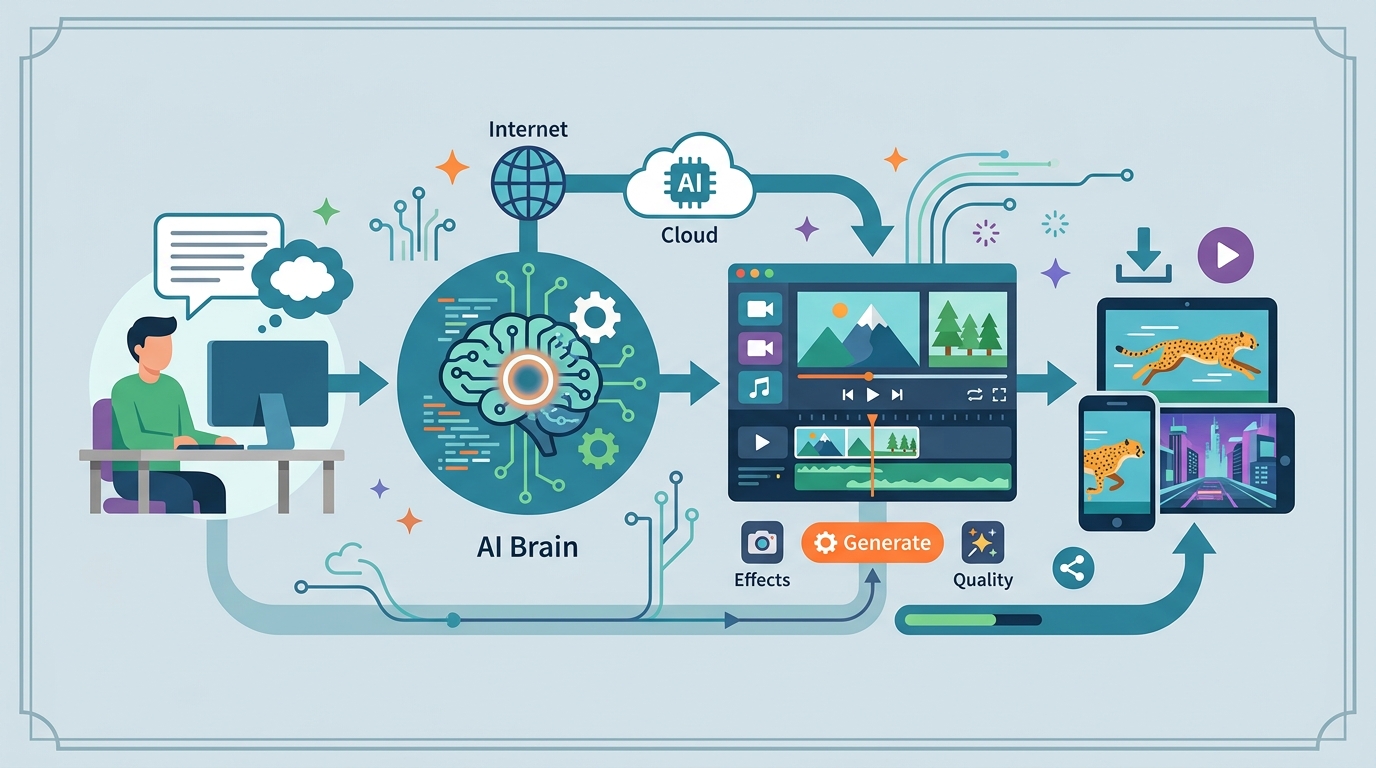
Use a prompt like this: “A cinematic drone shot over a neon Tokyo street in the rain, a woman in a yellow coat walking under red signage, slow camera push-in, reflective pavement, soft film grain, realistic motion blur.”
Verification: you should get a preview that matches the scene order you described. If the output feels random, add more specifics about lighting, weather, wardrobe, and camera movement.
Step 3: Set camera and motion controls
Goal: tune the visual behavior of the clip before rendering the full version. Pick aspect ratio, resolution, and motion intensity based on the type of content you want to create.
For talking-head clips, keep motion low and use a stable camera. For action scenes, raise motion intensity and specify pans, tilts, zooms, or tracking movement. If your interface includes director-style controls, use them to lock the shot composition.
Verification: you should see the preview respond to your settings, with less jitter in calm scenes and more movement in dynamic scenes. If the subject drifts too much, lower motion sensitivity and tighten the prompt.
Step 4: Generate a preview and extend it
Goal: validate the prompt quickly, then build the clip to full length only after the first version looks correct. This saves compute and reduces the chance of wasting credits on a bad direction.
Generate the initial preview first, then inspect continuity in the subject, background, and motion. If the preview is close, use the Extend feature to grow the clip toward the target duration, which in current workflows can reach 60 seconds for supported tiers.
Verification: you should see a short preview render first, followed by an extension control or timeline continuation. If the extended segment changes the scene too much, revise the prompt before generating again.
Step 5: Add constraints and safety metadata
Goal: prevent common artifacts and keep the output compliant for professional use. Add negative prompts or constraints to block unwanted effects such as floating limbs, morphing backgrounds, or style drift.
For production work, keep provenance features enabled and preserve the C2PA metadata attached to the export. If your workflow includes real people, use only approved likenesses and follow the platform’s biometric protection rules.
Verification: you should see export metadata or a provenance badge attached to the file. If the tool warns about likeness or policy issues, revise the subject or replace the real person with a synthetic character.
Step 6: Export and edit in your NLE
Goal: move the generated clip into your editing pipeline for trimming, sound design, and final delivery. Most teams will finish the asset in Premiere Pro, DaVinci Resolve, or a similar editor rather than shipping the raw output.
Download the generated file, import it into your editor, and add color correction, audio cleanup, subtitles, or scene transitions as needed. If the platform offers audio generation, treat it as a rough base layer and refine it in post.
Verification: you should see the clip in your timeline with the expected duration, aspect ratio, and embedded provenance data. If export fails, check file permissions, browser download settings, and account limits.
| Metric | Before/Baseline | After/Result |
|---|---|---|
| Video length | 15 seconds | Up to 60 seconds |
| Resolution | 1080p max | Up to 4K UHD |
| Frame rate | 24 fps | Up to 60 fps |
| Render time for full clip | Not available | 10 to 20 minutes |
| Preview time | Not available | Under 2 minutes |
Common mistakes
- Writing prompts that are too vague. Fix: name the subject, setting, lighting, and camera movement in one layered prompt.
- Using too much motion for a calm scene. Fix: lower motion sensitivity and describe a locked or slow-moving camera.
- Stripping provenance metadata before delivery. Fix: keep C2PA data intact and export from the approved workflow.
What's next
Once you can reliably generate one strong clip, move on to multi-shot planning, character consistency across scenes, and API-based automation for batch generation. That is the point where Sora becomes a repeatable production tool instead of a one-off demo.
// Related Articles
- [TOOLS]
Aliyun Bailian Token Plan turns credits into agents
- [TOOLS]
One API gateway turns six AI APIs into one
- [TOOLS]
OpenAI FDEs turn broken agents into shipped systems
- [TOOLS]
Anthropic’s daily brief turns news into a workflow
- [TOOLS]
Claude Reflect turns usage into retention
- [TOOLS]
Midjourney turns prompt ideas into art