How to Use Mistral OCR with Python
Use Mistral OCR to extract structured text, images, and tables from PDFs and scans.
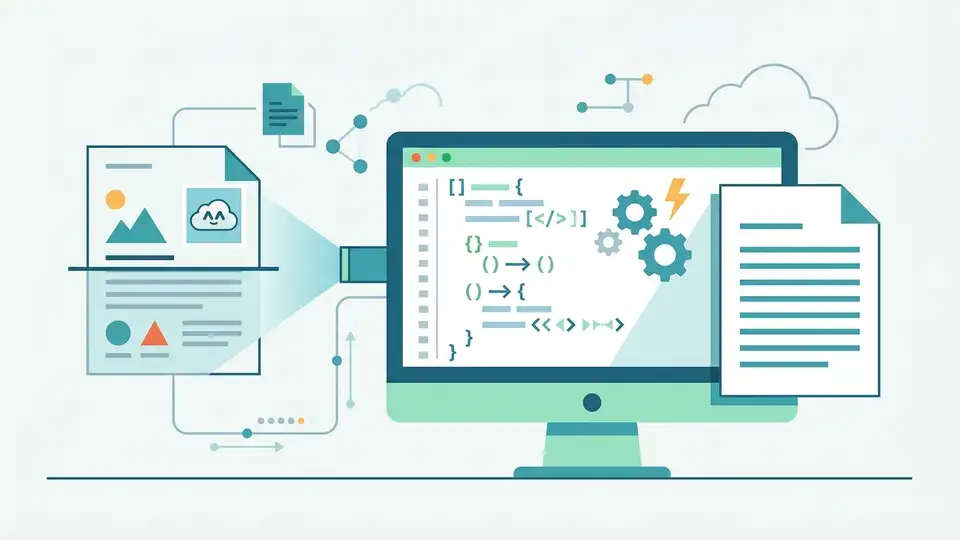
Use Mistral OCR to extract structured text, images, and tables from PDFs and scans.
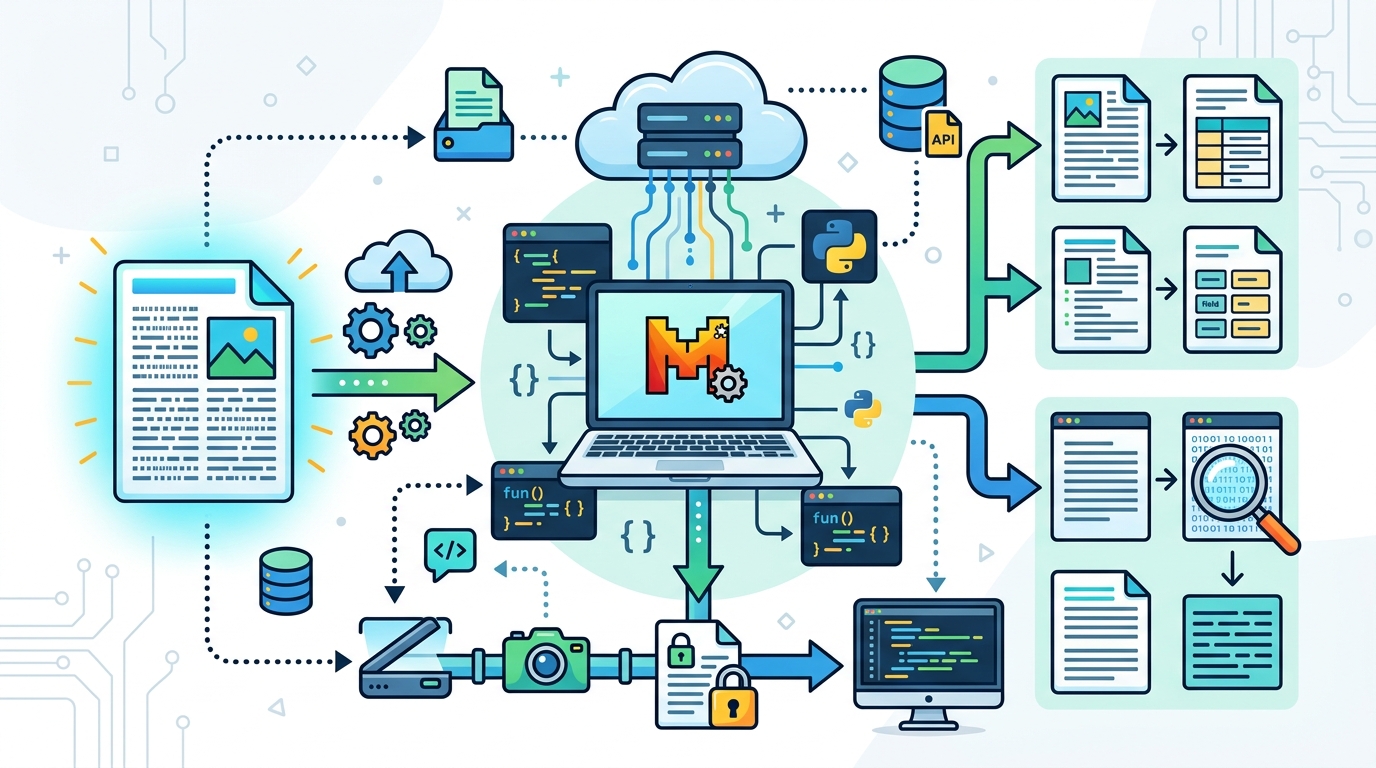
This guide is for developers who want to turn PDFs, scans, and document images into structured output with Mistral OCR. After following the steps, you will have a working Python setup that can OCR a remote PDF, upload a local file, preserve layout in Markdown, and save embedded images for downstream parsing.
You will also know how to verify the output, estimate cost per page, and avoid the most common integration mistakes when moving from a demo to a production workflow.
Before you start
Get the latest AI news in your inbox
Weekly picks of model releases, tools, and deep dives — no spam, unsubscribe anytime.
No spam. Unsubscribe at any time.
- Python 3.9+
- pip 23+
- A Mistral AI account on La Plateforme
- A Mistral API key
- Internet access for hosted OCR requests
- Optional: a local PDF or JPG/PNG scan for testing
- Optional: Git installed if you plan to commit a .env file and sample script
Install the official SDK and helper packages in a clean virtual environment so your OCR test runs do not conflict with other projects.
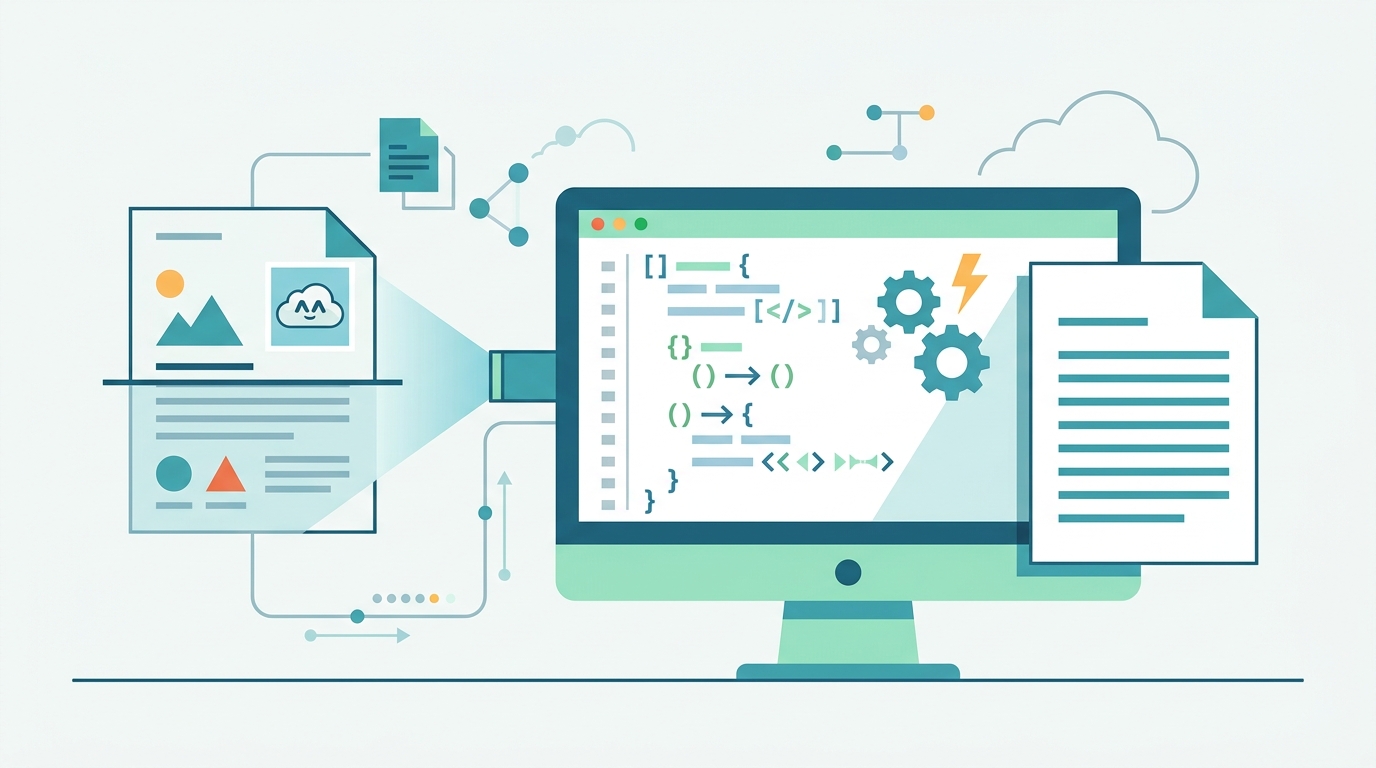
Step 1: Create a Python environment
Goal: build a clean runtime that can install the Mistral SDK without dependency conflicts. A virtual environment also makes it easy to reproduce the OCR setup later on another machine.
python3 -m venv .venv
source .venv/bin/activate
pip install --upgrade pip
pip install mistralai python-dotenv datauri
Verification: run python -c "import mistralai; print('ok')". You should see ok, which confirms the SDK is installed and importable.
Step 2: Store your API key securely
Goal: create a credential flow that keeps your key out of source code. Mistral OCR is accessed through the hosted API, so the client must authenticate before any document can be processed.
cat > .env <<'EOF'
MISTRAL_API_KEY=your_api_key_here
EOF

cat > .gitignore <<'EOF'
.env
.venv
EOF
Verification: open the Mistral docs and confirm your API key is active in the console. You should also see .env excluded from Git status.
Step 3: Initialize the OCR client
Goal: load the API key from the environment and create an authenticated client object. This is the point where your script becomes ready to call the OCR endpoint.
from dotenv import load_dotenv
from mistralai import Mistral
import os

load_dotenv()
api_key = os.environ["MISTRAL_API_KEY"]
client = Mistral(api_key=api_key)
print("client-ready")
Verification: run the script and look for client-ready. If the environment variable is missing, you should fix the .env file before moving on.
Step 4: OCR a remote PDF
Goal: extract structured Markdown from a public PDF URL. This is the fastest way to confirm that Mistral OCR is working end to end, because you do not need to upload a file first.
ocr_response = client.ocr.process(
    model="mistral-ocr-latest",
    document={
        "type": "document_url",
        "document_url": "https://arxiv.org/pdf/2501.00663"
    }
)

print(len(ocr_response.pages))
print(ocr_response.pages[0].markdown[:800])
Verification: you should see a page count greater than zero and Markdown that starts with headings, paragraphs, or figure references. If the source PDF has multiple sections, those should appear in the extracted text rather than as one flat block.
Step 5: Upload a local file and save images
Goal: process a PDF that lives on your machine and preserve embedded figures. This step is important when your documents are private, not publicly hosted, or need to be handled from a local workflow.
from datauri import parse

uploaded = client.files.upload(
    file={"file_name": "report.pdf", "content": open("report.pdf", "rb")},
    purpose="ocr"
)
signed_url = client.files.get_signed_url(file_id=uploaded.id)

ocr_response = client.ocr.process(
    model="mistral-ocr-latest",
    document={"type": "document_url", "document_url": signed_url.url},
    include_image_base64=True
)

for page in ocr_response.pages:
    for img in page.images:
        data = parse(img.image_base64)
        with open(img.id, "wb") as f:
            f.write(data.data)
Verification: you should see one or more image files saved to disk, such as img-0.jpeg. The Markdown output should still include the surrounding text and image references, which confirms layout preservation.
Step 6: Parse image scans and compare output quality
Goal: run OCR on a scan or phone photo and check whether the result keeps headings, table structure, and readable text. This step helps you understand where OCR quality is strong enough for automation and where you may need cleanup logic.
ocr_response = client.ocr.process(
    model="mistral-ocr-latest",
    document={
        "type": "image_url",
        "image_url": "https://example.com/receipt.png"
    }
)

print(ocr_response.pages[0].markdown)
Verification: you should see text output that matches the visible document, not just a raw character dump. On invoices or receipts, line items and totals should remain readable enough to feed into a parser or extraction pipeline.
| Metric | Before/Baseline | After/Result |
|---|---|---|
| Accuracy across diverse documents | 83.4% with Google Document AI | ~94.9% with Mistral OCR |
| Accuracy across diverse documents | 89.5% with Azure OCR | ~94.9% with Mistral OCR |
| Throughput | Typical single-document manual handling | Up to 2,000 pages per minute on a single GPU node |
| Pricing | Manual review cost varies by team | About $1 per 1,000 pages, or $0.001 per page |
| Request limits | Ad hoc file handling | Up to 50 MB or 1,000 pages per request |
Common mistakes
- Using a missing or expired API key. Fix: recheck
MISTRAL_API_KEYin.envand regenerate the key in the Mistral console if needed. - Passing a local file path directly to
document_url. Fix: upload the file first, then use the signed URL returned byclient.files.get_signed_url(). - Expecting OCR output to be plain text only. Fix: read the Markdown structure and image references, then decide whether to keep headings, tables, and figures in your downstream pipeline.
What's next
Once the basic OCR flow works, the next step is to add chunking, table extraction, and validation rules so your application can turn OCR output into searchable knowledge, invoice fields, or retrieval-ready content. If you are building a larger document pipeline, pair this guide with a vector store, a parser for Markdown tables, and a review step for low-confidence pages.
// Related Articles
- [TOOLS]
Aliyun Bailian Token Plan turns credits into agents
- [TOOLS]
One API gateway turns six AI APIs into one
- [TOOLS]
OpenAI FDEs turn broken agents into shipped systems
- [TOOLS]
Anthropic’s daily brief turns news into a workflow
- [TOOLS]
Claude Reflect turns usage into retention
- [TOOLS]
Midjourney turns prompt ideas into art